
What MCP does
The Model Context Protocol gives AI applications a standard way to discover and call external tools. Angareion exposes memory, knowledge, specialist, and handoff capabilities through an MCP server.
That means the assistant does not need a custom Angareion integration built specifically for its provider. It needs compatible remote MCP transport and authorization support.
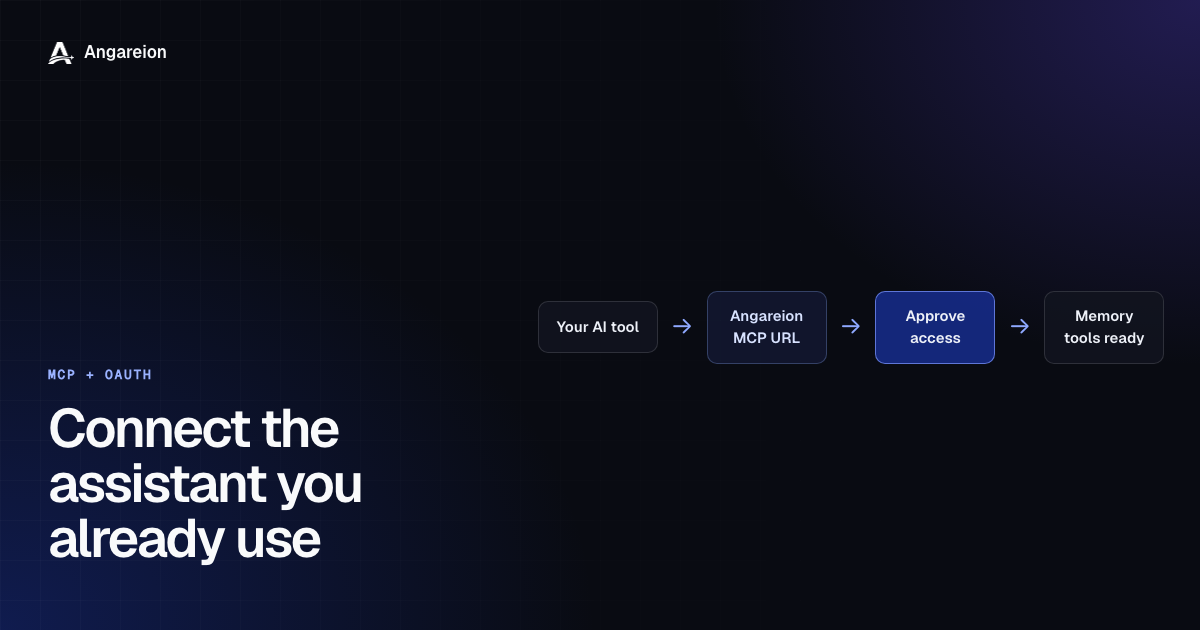
The connection flow
Open the tool's connector settings
Look for custom connectors, apps, integrations, or MCP servers. The exact label varies by provider and plan.
Add Angareion's MCP address
Name the connection “Angareion” and enter https://mcp.angareion.dev/mcp. Choose Streamable HTTP or the equivalent remote HTTP option when the client asks for a transport.
Complete authorization
The AI tool opens Angareion in a browser. Sign in to Angareion, choose or create the agent identity for this connection, review the requested access, and approve it.
Return to a new conversation
The client discovers the Angareion tools. In some products, you must explicitly enable the app or connector for the conversation.
Test one safe recall
Ask the assistant to list or search your Angareion memories. Then save a small test memory and recall it from a fresh chat.
Why you do not paste an Angareion password into the AI tool
The hosted connection uses browser-based OAuth authorization. Your Angareion credentials stay on the Angareion sign-in surface. The client receives delegated access after approval rather than receiving your password.
Compatible clients can also use discovery and Dynamic Client Registration, which removes the need for users to manually create and paste a static OAuth client secret.
Which tools work
Angareion documents connection paths for supported products including Claude, Claude Code, ChatGPT, Codex, Gemini CLI, Gemini Enterprise, Perplexity Enterprise, Joule Work Desktop, and other compatible MCP clients.
Availability can depend on provider plan, workspace policy, administrator settings, and whether the client supports remote Streamable HTTP plus OAuth. Consumer products that do not expose custom MCP connections cannot use the URL-only flow.
Common connection problems
No authorization window appears. Some clients wait until the first Angareion tool call. Ask the assistant to search Angareion memory.
No tools appear after approval. Start a new conversation and confirm the connector is enabled for it.
The client asks for static credentials. Use automatic OAuth discovery and Dynamic Client Registration when offered. A client that requires an unsupported secret-based flow may need a different setup path.
A local-only client supports stdio but not remote HTTP. Use Angareion's local binary instructions instead of the hosted URL.